You get a notification
A tab in your browser cannot alert you. An icon on your home screen can.
How it works
After that you get a message the moment a home opens up. Even with your phone in your pocket.
About 30 secondsNo app storeCosts nothing
A tab in your browser cannot alert you. An icon on your home screen can.
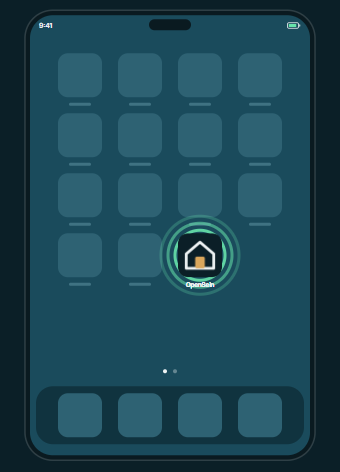
No hunting for the right tab. OpenSein simply sits between your other apps.
No app store, no updates. It takes up almost no space on your phone.
We look at your device and your browser and only show the steps that work here. Not right? Pick another device below.
iPhone or iPadOn an iPhone only Safari can do this. Chrome and Instagram will not work.
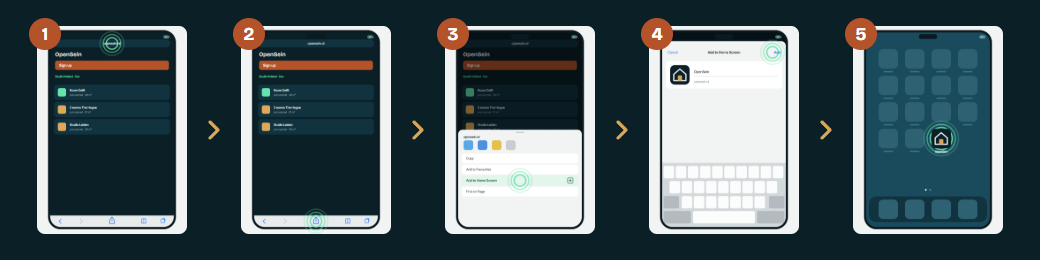
1of 5
Safari is the app with the blue compass. Type opensein.nl in the bar at the top.
Already have the site open in Safari? Then step 1 is done.
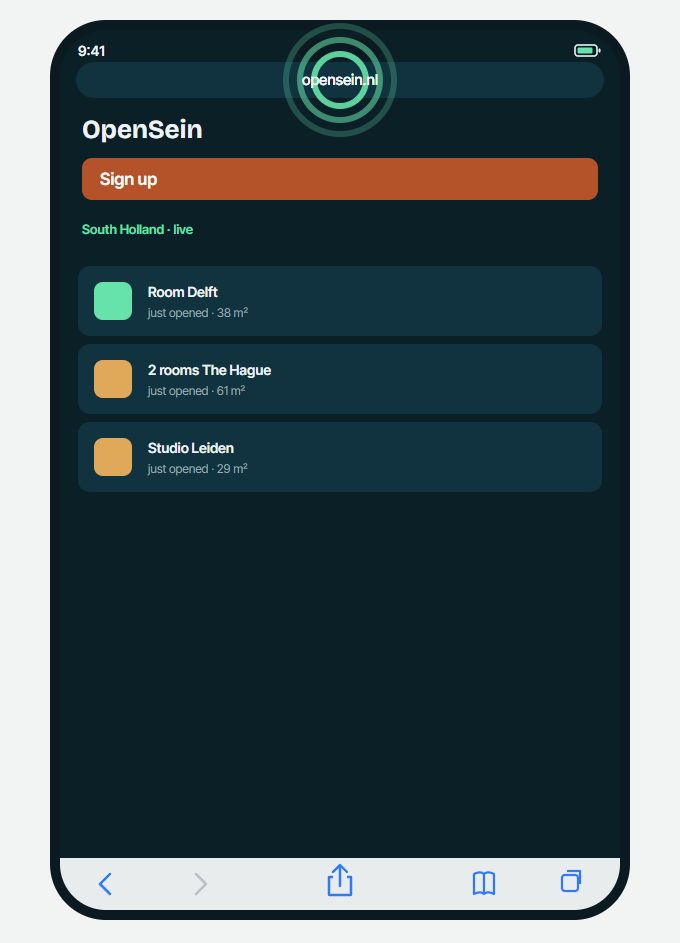
2of 5
That is the small square with an arrow pointing up, in the middle of the bottom bar.
Cannot see the bar? Scroll the page down a little.
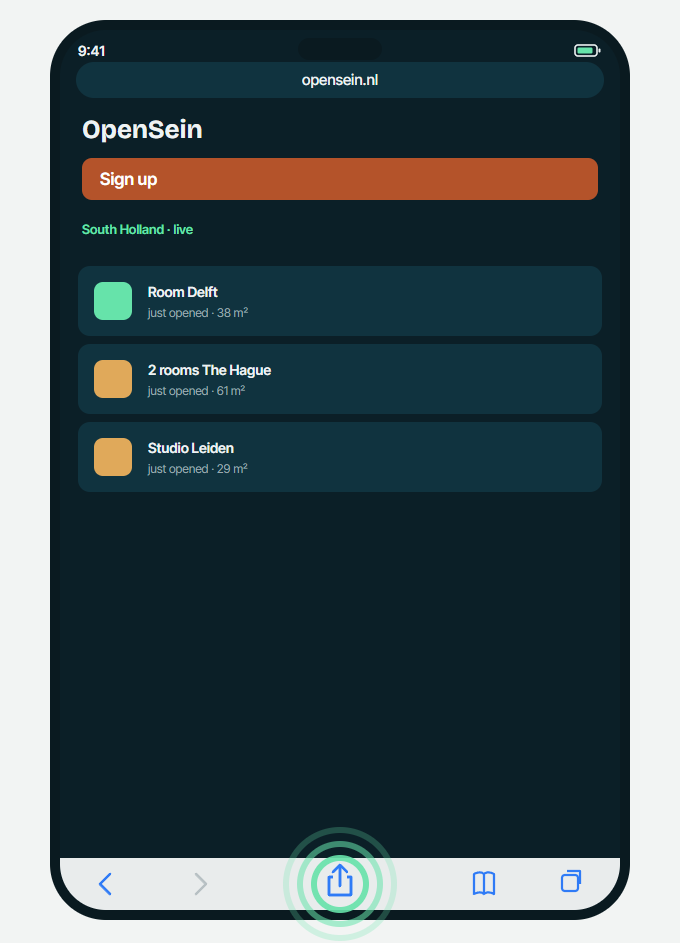
3of 5
The list is long. Keep scrolling until you see that line, with a plus next to it.
Add to Favourites is something else. You do not need it.
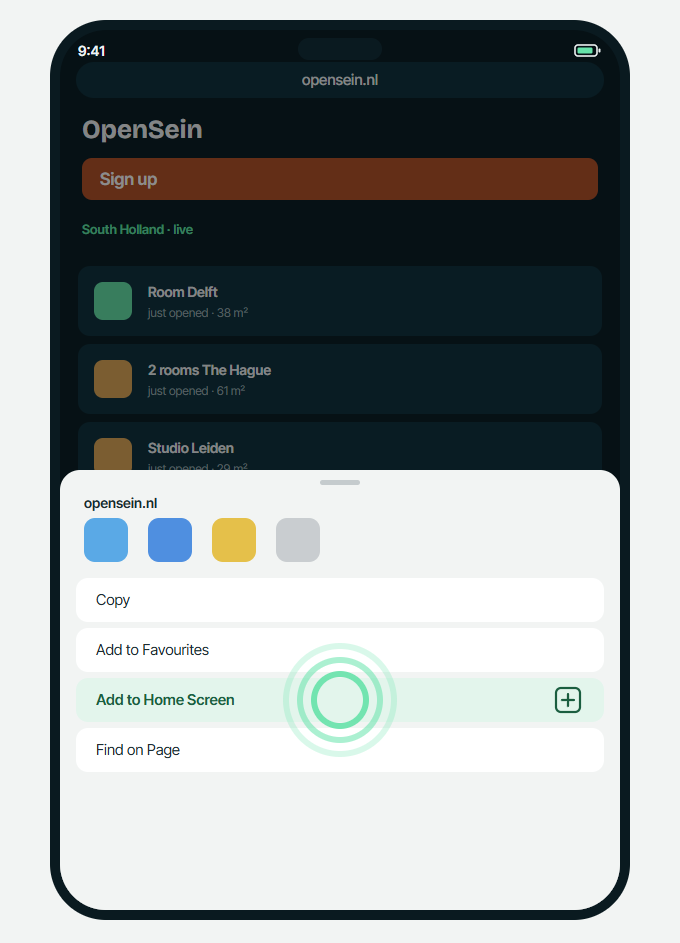
4of 5
The name OpenSein can stay exactly as it is.
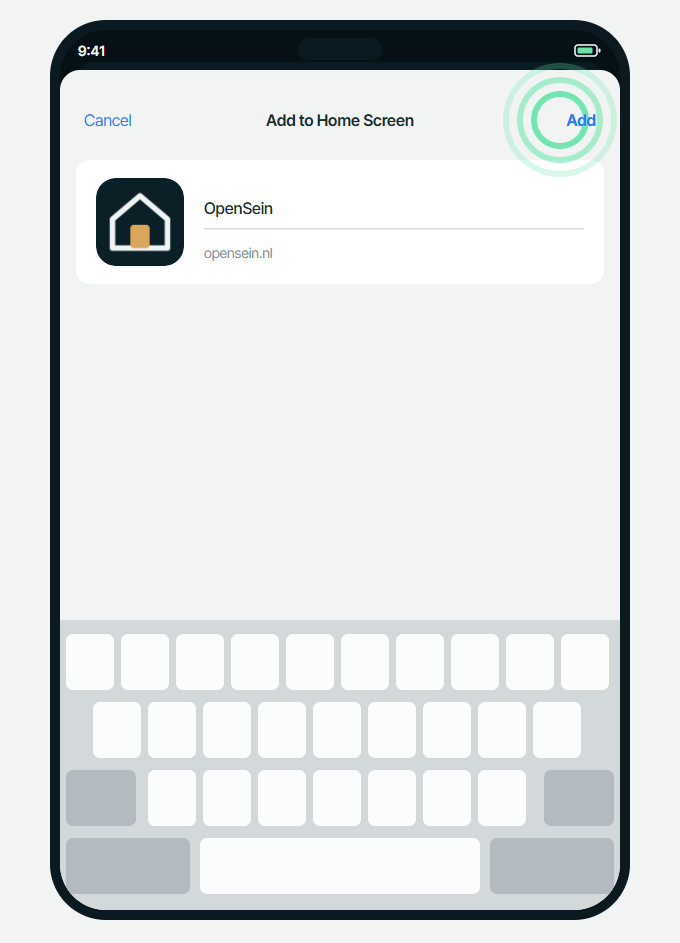
5of 5
From now on open OpenSein through that icon. Tap Allow when it asks about notifications.
Keep going through Safari and no notifications will arrive.
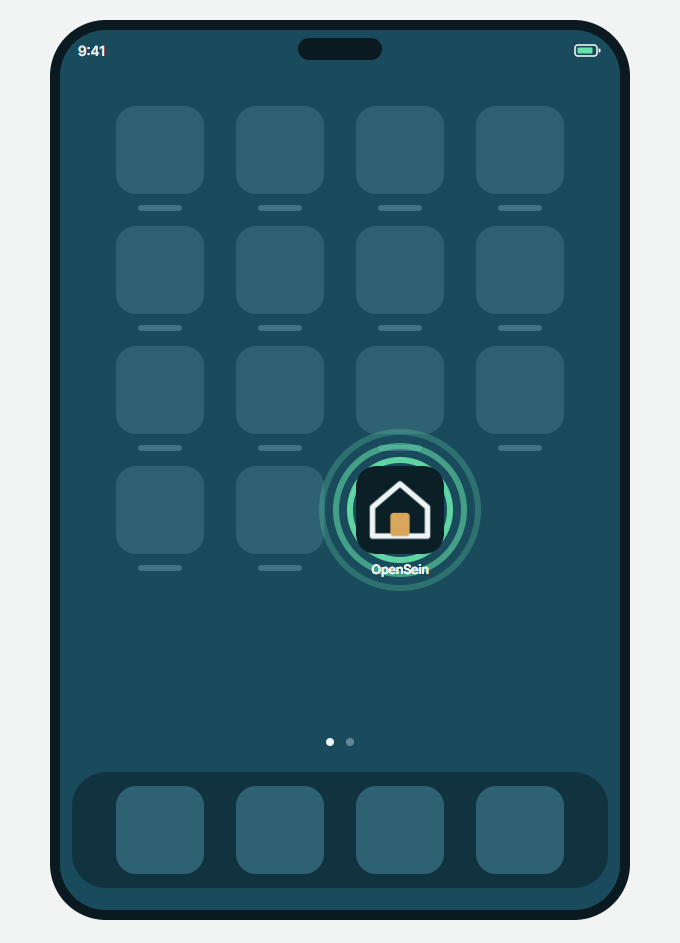
AndroidOn Android you do this in Chrome. It will not work from Instagram or WhatsApp.
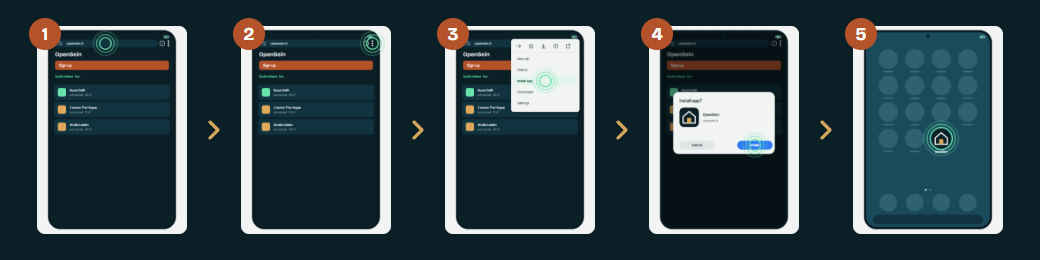
1of 5
Chrome is the app with the red, yellow, green and blue circle. Type opensein.nl in the bar at the top.
Already have the site open in Chrome? Then step 1 is done.
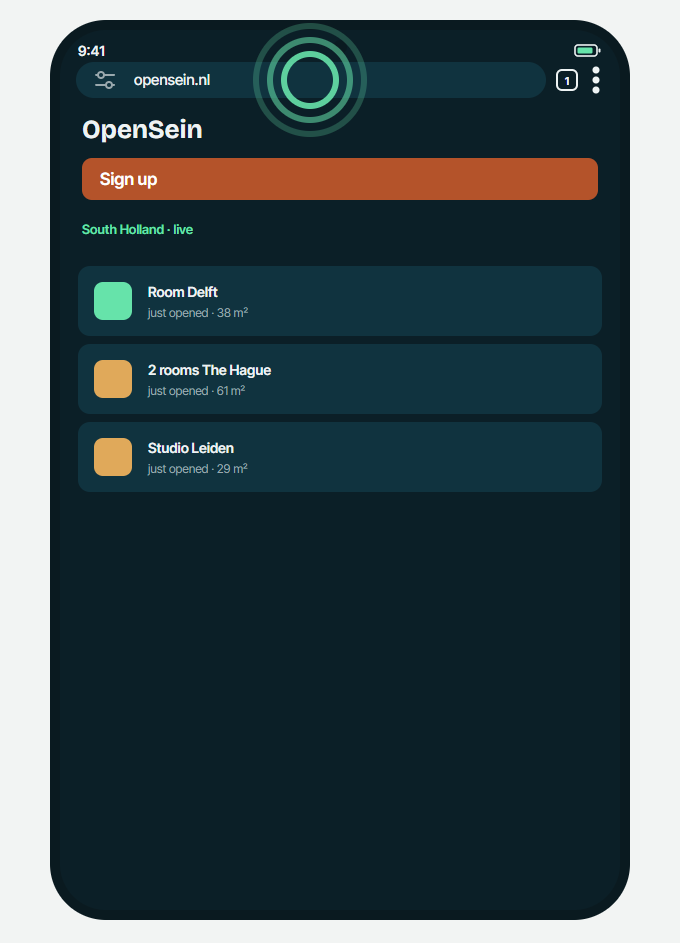
2of 5
Three dots stacked above each other, just right of the address bar.
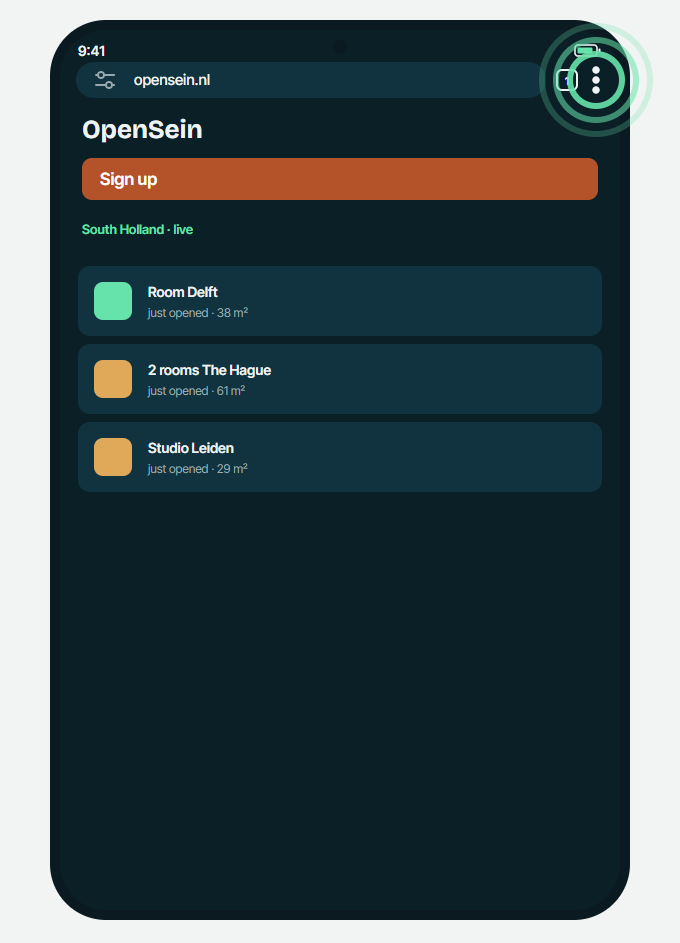
3of 5
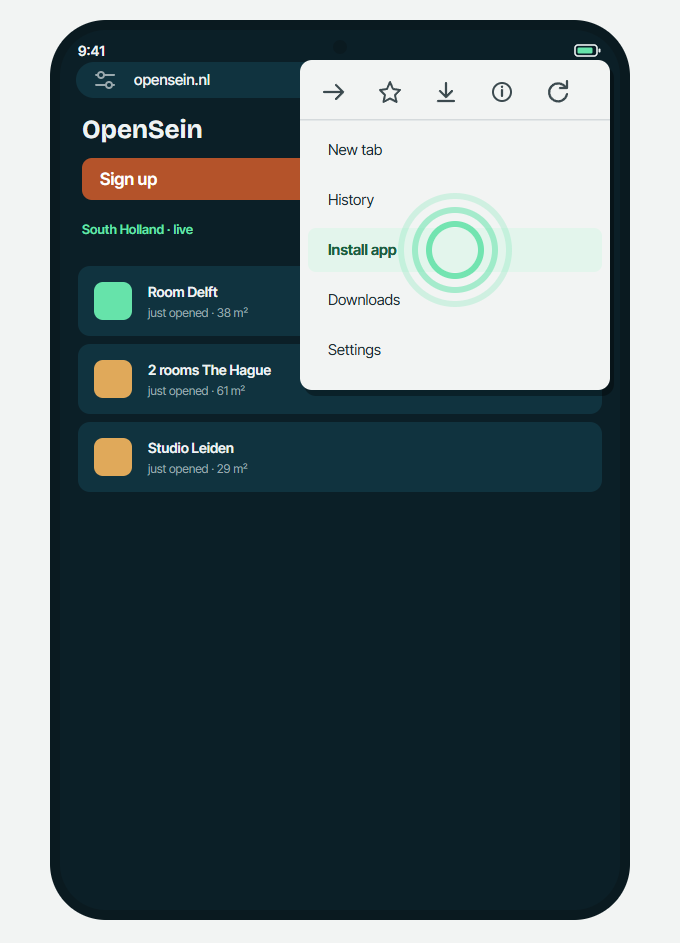
The menu opens. The line sits roughly in the middle.
Does it say Add to Home screen? That is the same thing. Tap that.
4of 5
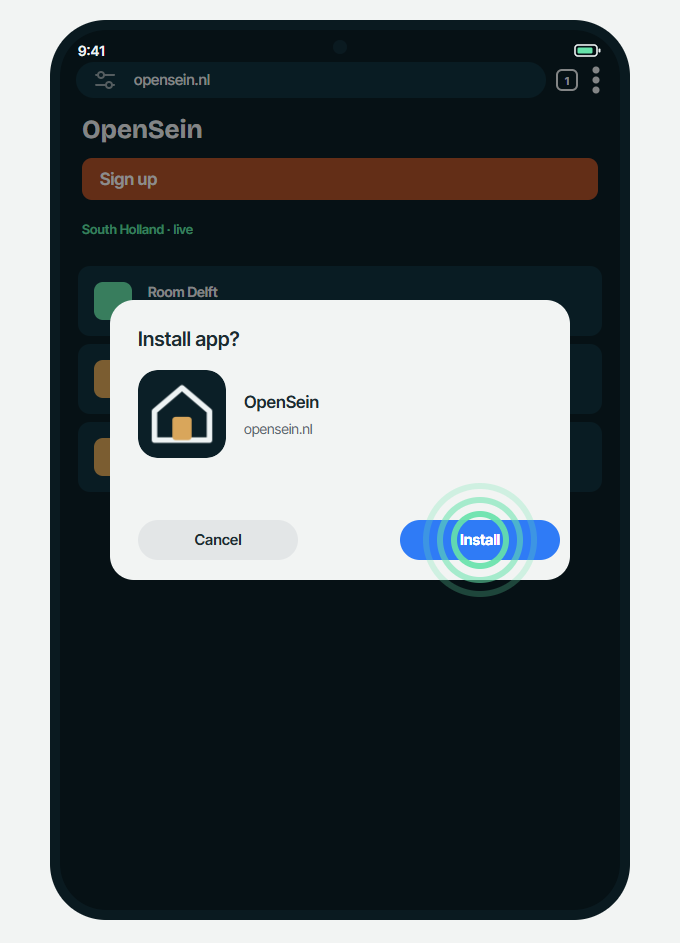
Chrome asks once more to be sure. That is the last tap.
5of 5
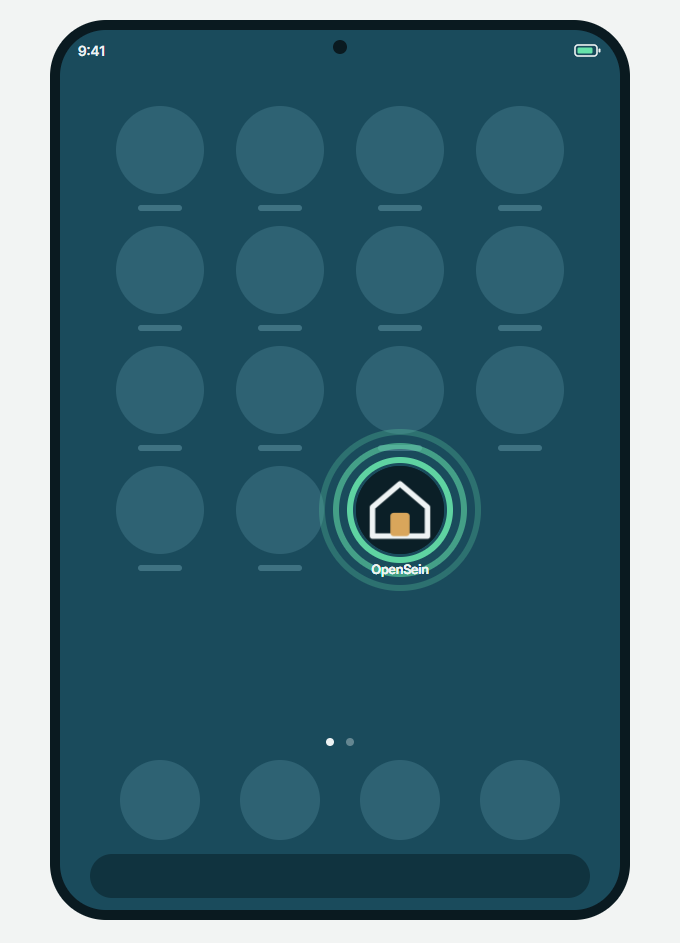
From now on open OpenSein through that icon. Tap Allow when it asks about notifications.
The icon is on your home screen or in your app drawer.
ComputerOn a computer the browser alert works in Chrome and Edge without an icon too. Firefox we do not promise.
In Chrome or Edge the alert works without an icon: switch it on in the browser and it comes. If you would still like OpenSein as its own window, click the icon on the right of the address bar or choose Install app in the menu. Safari 17 or newer: File, then Add to Dock.
Notifications only start working after you have opened OpenSein through the icon once. That is not a formality: only then is your phone allowed to let you know anything.
Three things go wrong almost every time. All three are fixed in ten seconds.
Those apps open a small browser window. That window cannot place an icon.
FixTap the three dots in the top right and choose Open in Safari or Open in Chrome. Then start again at step 2.
Then you are probably using Chrome on an iPhone. Only Safari can do this on an iPhone.
FixType opensein.nl in Safari and start again at step 1.
Notifications only work after you open OpenSein through the icon on your home screen, not through a tab.
FixOpen the icon on your home screen and tap Allow. Done.
Not a program. You are placing a shortcut that behaves like an app: its own icon, its own window and its own notifications. The site itself stays on our server.
Professionals have their own word for it. You never have to remember that word.
| App from the store | OpenSein on your home screen | |
|---|---|---|
| Download | 30 to 80 MB | next to nothing |
| Updating | you, by hand | by itself, every time you open it |
| Notifications | yes | yes |
| Space on your phone | a lot | almost none |
| Removing it | through the store | hold the icon and remove it |
| Account needed | often | no |